User’s Guide
Adding Music
Pentaton does not come with any music, you have to add your own library.
Files & Folders
Pentaton can scan a folder and its subfolders for playable audio files and read their metadata to build its database.
Getting music to your device
Keeping your music library (or a copy of it) on your device allows for the fastest access and the ability to listen offline. To do that you can:
- Purchase music and download files to your device directly.
- Connect your device to a Mac and open Finder. Select the device on the sidebar and open the Files tab. Drag and drop files or folders onto Pentaton.
- Use the Files app on your device to access your music library on a computer by using the “Connect to Server” feature, then copy the files to your device. To access files on a computer, you have to enable file sharing on it.
Add music to Pentaton
Once you have your music library on your device, you need to tell Pentaton where to find it. Tap “Add Folder” in Pentaton’s menu on the home screen to open the folder picker and navigate the folder you want to add. Once you have that on your screen and see its contents, tap “Open”. This signals Pentaton to use this folder and authorizes it to have access to all the files and subfolders.
You can add as many folders to Pentaton as you like, but most people should be fine just adding the topmost folder that holds all their music library, since all the subfolders will also be scanned.
You don’t have to copy your music library to your device if you don’t want to, you can also add it directly from your computer or NAS. To do this, you need to open the Files app first and use the “Connect to Server” feature. Once you see your music library in the Files app, you should be able to add it to Pentaton.
Some apps allow you to access files in the Files app (like Google Drive or QNAP’s NAS app) that you can’t add to Pentaton due to how their Files integration is implemented.
iCloud Drive
You can also add a folder from your iCloud drive, but be aware: iCloud files are downloaded when an app tries to read from them. The whole file is downloaded to the device even if Pentaton only needs a kilobyte of metadata. We recommend using iCloud folders only if they are marked as “Keep Downloaded”, so all the files are already on your device.
The Pentaton folder
Pentaton has its own folder in the Files app you can use to store your music in. This folder shows up in Finder when you connect your device to a Mac and open the Files tab. While it is convenient to drop music into this folder and keep it there, we don’t recommend this since deleting Pentaton will also delete what’s in this folder. You should keep your library outside of any app’s folder. You can however use this folder to drop music from a Mac and then move them out using the Files app on your device.
If you do end up storing music in the Pentaton folder, you have to add it to Pentaton using the “Add Folder” menu on the home screen, it is not included automatically.
Metadata
All folders you add will be scanned recursively for playable audio files. Pentaton extracts all included metadata and uses it to build its database. A well maintained library has a better chance of showing up properly, but Pentaton should work anything, even with no metadata at all, falling back to file and folder names.
The metadata and the folder structure are both important. Pentaton walks the folders and classifies them as albums, album sets or general lists based on their contents. If you keep all your files in one flat folder, Pentaton will not show albums properly.
All titles, artists genres and composers are extracted with support for multiple values using “null separated strings” (for ID3) or multiple tags (for Vorbis comments), but not by separator characters. Pentaton also reads all sort-order tags (like titleSort and artistSort) where you can define custom sort orders like “Beatles, The”. When an artist, composer or genre has multiple sortOrders in different files, the most common one is used.
Scanning for changes
When navigating around your library, every folder opened is automatically refreshed. To avoid re-scanning the whole library completely, Pentaton uses file metadata like size and last modification dates to determine if a folder’s contents have changed. You can always trigger a full refresh by long-pressing on a folder on the home screen and tapping “Refresh”.
Media Library
Your device’s Media Library is the one you access using the Music app. This combines songs you copied using Finder via the “Music” tab, you purchased directly or have shared through iTunes, or even your Apple Music library.
Include music from your Media Library
To show your Media Library in Pentaton, tap “Include Media Library” in the menu on the home screen.
Supported songs
Pentaton’s audio engine needs access to the raw PCM audio data. Without this, it can’t apply equalization, do sonic analysis or even generate a waveform. The MediaLibrary API on iOS only exposes raw PCM for your own, downloaded and non-DRM protected media, so Pentaton excludes all other not playable audio.
Metadata
Pentaton has no access to the actual files of media library entities and relies on the MediaLibrary API for metadata, which has no support for advanced sort orders and multiple values.
Scanning for changes
Changes to the media library will be picked up automatically.
Playing Music
Supported formats
Pentaton supports all commonly used formats:
- FLAC
- ALAC
- MP3
- AAC
And also the not-so-common ones:
- Ogg Vorbis & Speex
- WavPack
- Wave
- AIFF
- True Audio (TTA)
- Monkey’s Audio
- Musepack
- Shorten (SHN)
And even DSD, played back using DSD-over-PCM:
- DSF
- DSDIFF
Playback controls
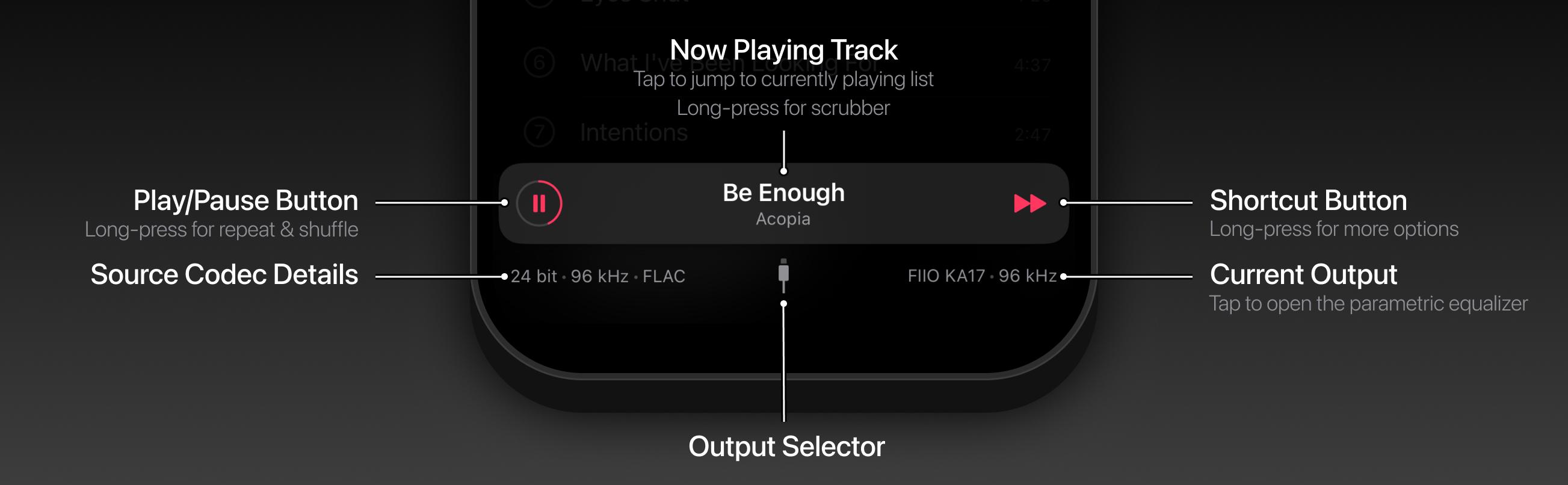
Music playback is controller using the playback control toolbar on the bottom of the screen.
Jump to now playing
Tapping the now playing track’s title jumps back to the currently playing list.
Scrubbing
Long-pressing on the now playing track’s title opens the scrubber. Pan left or right to select the desired position. An audio waveform is displayed to help navigation.
Repeat & Shuffle
Long-pressing on the play/pause button opens up the playback mode menu, where you can select repeat modes (one track or all tracks) and enable shuffle, which is implemented using the Fisher–Yates algorithm for true randomness.
Shortcut button
The right button in the playback control toolbar is a customizable shortcut button. By default, it shoes a “Next” action, but you can select other actions by long-pressing it.
Previous and next tracks
You can swipe left on the now playing track’s title to go the previous tracks and right for the next track.
Signal path indicator
Pentaton’s always visible signal path indicator shows detailed media codec information on the left (bit depth, sample rate and codec name) and the active output on the right, with a button in the center to select a different output. Pentaton keeps the output sample rate in sync with the source material, whenever possible. For MQA encoded files, it displays the original sample rate.
Navigation
Sources
Pentaton supports two kinds of sources: folders and the media library. When added, they appear in the sources section on the home screen. For folders, you can browse the folder structure and see all playable files. For the media library, only Albums are exposed.
Lists
All lists (albums, folders, playlists, genres, etc) are playable, tapping on any track will start the playback from that track. Some lists support a grid view that can be enabled from the top menu by tapping “Grid”. Lists with both albums and tracks (like artist views) will show a top selector to filter albums and tracks easily.
Search
Pentaton builds a search index of all scanned music metadata. You can search by tapping “Search” in the top menu. Searching can be narrowed down by using the scopes displayed below the search bar. These can be:
- Library: searches in the whole library
- Source or main section like Albums or Tracks: searches only in the selected source or section
- Current list: searches only in the current list and its children
Recent searches are saved in the order you searched for them. This list can be cleared by tapping the “Clear” button on the right.
Favorites
You can mark your favorites by long pressing on an item and selecting “Add to Favorites”. Item that are already in your favorites will show an option to remove them from your favorites. Any item (tracks, albums, artists, genres, composers) can be marked as a favorite.
Favorites are stored using their internal identifier. If a source is removed and re-added, items will be given new identifiers and their favorite status will be lost.
Selection
You can start a selection on any list in Pentaton by tapping “Select” in the top menu. Selected items can be added to your favorites or to a playlist. When adding to a playlist, tracks are added directly while other items (albums, artist, etc) are replaced by all the tracks they contain.
Playlists
Creating a playlist
Playlists can be created from the playlist selection screen. This shows up after you long-press on an item (or select multiple items) and tap “Add to Playlist”.
Playlists need only a title to be saved.
Keeping a file copy
Playlists are stored in Pentaton’s internal database, but we recommend also saving them as files. When you keep a file copy, all changes to the playlist are automatically saved to the file as well. This allows you to import your playlists into other applications and makes sure that your playlist is preserved even after you delete and re-add your sources or re-install Pentaton.
To keep a file copy, select a folder to save the playlist file in. Pentaton will use the playlist’s title as the file name. Playlists are saved in the m3u format using relative file references.
Scanning playlists
When scanning source folders, Pentaton also checks all playlist files. Both relative and absolute file references are supported in the following formats: m3u, pls and xspf.
If a playlist references a file that is not part of any added source, a placeholder will be displayed since Pentaton can’t access files outside the added sources. If you add a source later that has the missing file, the placeholder will be replaced with a playable track.
Playlists that contain all files from its parent folder (so called “album playlists”) are ignored.
Editing a playlist
You can reorder or remove tracks from a playlist by tapping “Edit Tracks” in the top menu when showing a playlist. If the playlist keeps a file copy, changes will also be saved to the file automatically.
Playlists can be renamed either by long-pressing on them and tapping “Rename Playlist” or from the top menu when showing a playlist.
Equalizer
Pentaton’s parametric equalizer can be opened by tapping on the current output in the signal path indicator or “Audio Output” in the top menu. Equalization can be applied to either all outputs or just the current output. Outputs are identified by their name and equalizer settings are preserved for all outputs.
The equalizer has 10 bands. Long-pressing on a band’s icon allows the selection of the filter type. Pentaton supports all filters: shelves, passes, stops and peaks and their resonant variants.
The top chart shows the individual filters, their combined value and their real-time effect on the live output using a hardware-accelerated spectrum analyzer.
Presets can be saved by tapping the “Save” button in the bottom toolbar.
Tapping “Presets” in the top toolbar opens the preset browser. Pentaton has all presets from the OPRA community project and automatically downloads all updates. Tapping on a preset loads it after a confirmation.
Your custom presets can be deleted by long-pressing on them and tapping “Delete”.
Customizing
Home screen
You can re-order and hide items from the home screen by tapping “Edit Sections” in the top menu.
Shortcut button
You can long-press the shortcut button in the playback control toolbar and select another action.
Start screen
You can set which screen to show when starting Pentaton in Settings / Apps / Pentaton.
Sort orders
You can configure the sorting order for all list types in Settings / Apps / Pentaton.